
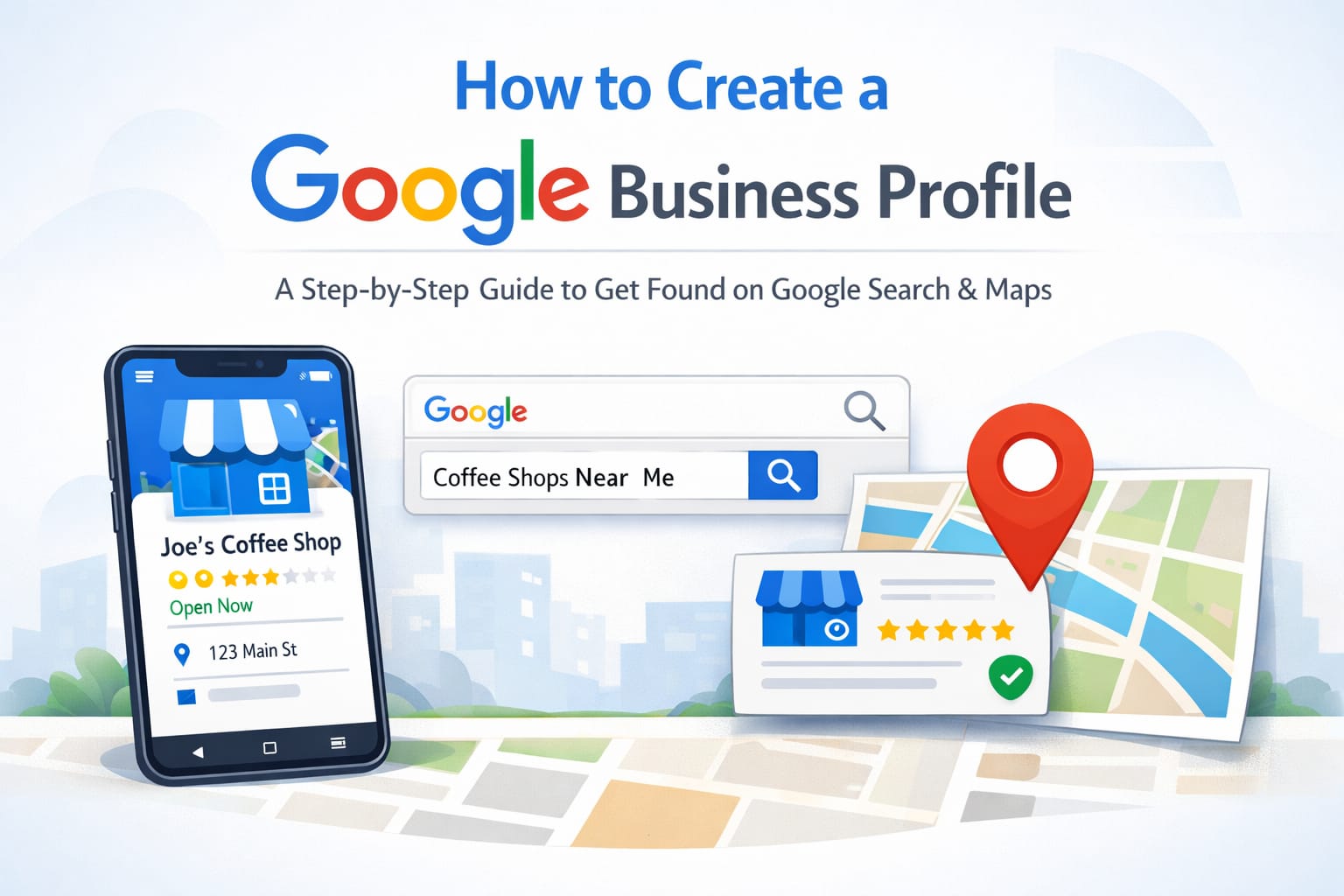
If you're trying to attract more customers to your business online, then one of the best ways to do so is by creating a Google Business Profile (GBP). Setting up a GBP is free and an excellent way for customers to find your business online.
By having a GBP, when someone searches for your business or the service you offer, not only can they see your contact details (i.e., address, phone number), but also other important information about your business that shows up in Google Search and Google Maps, including customer reviews, directions to your business, and images of the services you provide. This means that anyone searching for a service similar to yours has access to all of these resources in one location.
This guide will show you exactly how to set up a GBP for your business. Whether you own a physical store, provide your service at your client's location, or operate an online business, setting up a GBP is incredibly simple.
What is a Google Business Profile?
A Google Business Profile is a free business listing provided by Google. When someone searches for your business on Google, they will see all of the essential information needed to contact you, including your name, location, telephone number, website, hours of operation, reviews from other customers, and photos of your products and/or services.
Having a GBP will help potential customers find out:
- Where are you located.
- Call you with just one click.
- Read the positive comments of others who have used your services.
- View the most recent offers and updates that you have available.
Therefore, every small business owner must know how to set up a GBP for their respective business correctly.
How to Start: The Requirements Ahead of Time
To begin creating your profile, you must have:
- Your own Google account (if you do not yet have one, you can set up an account for free).
- Your business name, type of business, and contact information.
- The email address or phone number that you are going to use for verification.
- Some good quality photos of your business (while they aren't necessary, it does increase the chances that people will find your business page).
If you are creating a Google Business Profile on behalf of a client, you may create it under your Google account and transfer ownership to your client at a later date.
Step 1 - Creating A Business Profile
To create a new Google Business Profile, visit business.google.com/add. This is Google's official site to create a new profile for businesses. Alternatively, you can look up your business name on Google or Google Maps. If your business has an unclaimed listing on either of those platforms, you will see links saying, "Own This Business?" or "Claim This Business." Click the link to claim your listing.
Step 2: Sign in to Your Google Account
If possible, choose an email address that you frequently check; this is critical to your ability to receive important notifications and verify your business, especially if you are creating a profile for a customer.
Step 3: Put Your Business Name and Category
Separate category and name of business - Enter the actual and complete name of your established business. Do not try to stuff it with keywords, and do not include location unless it is officially part of your name.
Enter a single category that best represents your type of business, because Google uses this to classify and provide relevant customers with your information. A few options for your business category include:
- Digital Marketing Agency,
- Italian Restaurant,
- Hair Salon,
- Plumbing and Online Store
Whenever possible, use the specific category that best describes your business. You may add additional categories at any time.
Step 4: Add Your Business Location
Depending on your business, there will be different paths that you can take in adding your business location.
- For those who DO have a physical location: Where customers can come to see them, then select 'Yes' when Google asks if customers can 'visit your location.' From there, enter your full address, including street address, city, state, and pin code. This will allow customers in the area of your business to locate you on Google Maps.
- For those who do NOT have a physical business location: Many businesses do not operate out of an actual storefront. Freelancers, consultants, home-based businesses, and even online businesses are just a few examples of this type of service/business. If you do not have a physical business location, select 'No' when Google asks you to provide one.
When creating your Google Business profile, even if you do not have an address, your profile still shows up in search results. You will not, however, have the option of showing a pin location on Google Maps. This is ideal for the service providers who travel to customers or do service calls only, and for those businesses that operate completely online.
Step 5: Define Your Service Area
If you are going to visit your customer at their home or business instead of them coming to your location, Google allows you to define your service area by allowing you to choose the area you service. You can choose from:
- Specific cities/neighborhoods
- A radius from your location
- Multiple regions or entire states
This feature is especially beneficial for service providers such as mobile repair companies, plumbers, electricians, and similar services.
Step 6: Include Your Contact Information
Your contact number should be a business number that customers can reach you on. Include your website address if you have one. If you don’t yet have a website, don’t worry; Google can also create a simple, free website from the information contained in your Google Business Profile, which will provide you with a basic yet better-than-nothing website when starting.
Step 7: Set Your Business Hours
Seventh, add your typical business hours for the seven days of the week to indicate when you open and close. Customers are frustrated when they show up at closed businesses because business hours were incorrectly posted. You can add additional hours on existing business hours for a holiday, and also indicate if you will be temporarily closed. By regularly updating this information, you will build customer trust.
Step 8: Write a Compelling Business Description
Create an engaging business description of two to three sentences that explains what your business does, who it serves, and what makes it different from similar businesses. Use a conversational, friendly tone and don't go overboard with keywords; simply describe your business truthfully and in an easy-to-understand way. Google understands who and what a business is without needing to rely on keywords.
Step 9: Upload High-Quality Photos
Businesses that have photos receive significantly more clicks, phone calls, and requests for directions than those that do not. Within the photo section of your Google Business Profile, be sure to upload high-resolution images of the following:
- The logo of your business.
- A cover image that encapsulates the purpose of your business
- Examples of products you sell or menu items
- The storefront, office, or other areas where your business operates.
- Team members
- Happy customers (with permission)
All photos should be taken with a good-quality camera/webcam or smart smartphone using good lighting. Poor-quality images (i.e., blurry, dark, etc.) do not represent your business the way you envision it. Use the profile as an extension of your business; create an inviting space.
Step 10 - Business Verification
Your public profile of your business should be verified. It is crucial to get your Google Business Profile set up. They must confirm you are the owner or administrator of the business prior to it being live. Google verifies business profiles in five different ways:
- A postcard in the mail (This is the most popular way): Google will send a postcard containing your verification code to the business address.
- A phone call: An automated voice call with a verification code will be sent directly to your telephone.
- Via email: An email with a verification code will be sent to you.
- By video verification: In certain cases, Google may request a video of your business from 360 degrees.
Managing Multiple Locations or Business Entities in GBP
Google allows you to manage as many businesses from one Google account as you have physical addresses to enter into the system. In order to add a business location to your profile:
- First, log in to your Business Profile Manager.
- Then select "Add Business".
- Select "Add Single Business".
- Follow the same process as with your original Business Profile
Each one of your separate businesses has its unique profile, with its unique information and photos, and reviews. After entering your verification code, your profile is live and searchable on Google for both Google Maps and Google Search.
Creating a GMB Profile for Client
If you are an agency or marketing professional creating client profiles, use this method:
- Use your own Google account to create a business profile
- Complete all of the setup processes
- Verify the business
- Once verified, navigate to your profile settings and add the client as an owner or manager.
- Transfer ownership of the profile, as appropriate
This allows you to create the profile in a properly functioning manner while giving full access and control of the profile to your client.
Why Google Business Profile Matters for Your Business
A Google Business Profile is not simply an online presence; it has a direct effect on acquiring new Clients:
- Visibility in Your Local Area - Your business appears when Local Customers are searching for the products/services you provide.
- Reputation Builder - Reviews/photos associated with your business reassure potential/new customers.
- A Call to Action - Your prospective customer can call, send a message, or physically visit your business with one click.
- Cost-Free - Your Google Business Profile is 100% free, whereas Google Ads/Paid Listings are not.
- Applicable to Any Business - Physical storefronts/Service-based Businesses/Online Retailers, etc.
Think of the Google Business Profile as a Free, Ultimate Billboard located on the Internet's busiest street - Google Search. Not creating this profile is equivalent to losing potential business.
Conclusion
Creating a Google Business Profile is easy once you understand how it works. Be diligent when adding information to each section; use quality images; and ensure that you update your profile regularly.
An appropriately maintained Google Business Profile will generate leads (calls, website traffic, and real customers) without spending on advertising. A Google Business Profile is not only helpful, but it is extremely important in today's Digital World.
If you do not have a Google Business Profile created, please create one today. Your future customers have already begun looking for businesses like yours on Google. Make sure they can find you!